Drop in video clips, photos, music, and titles. Drag to arrange, overlap to crossfade, press play to preview, export to MP4. No learning curve, no subscription.
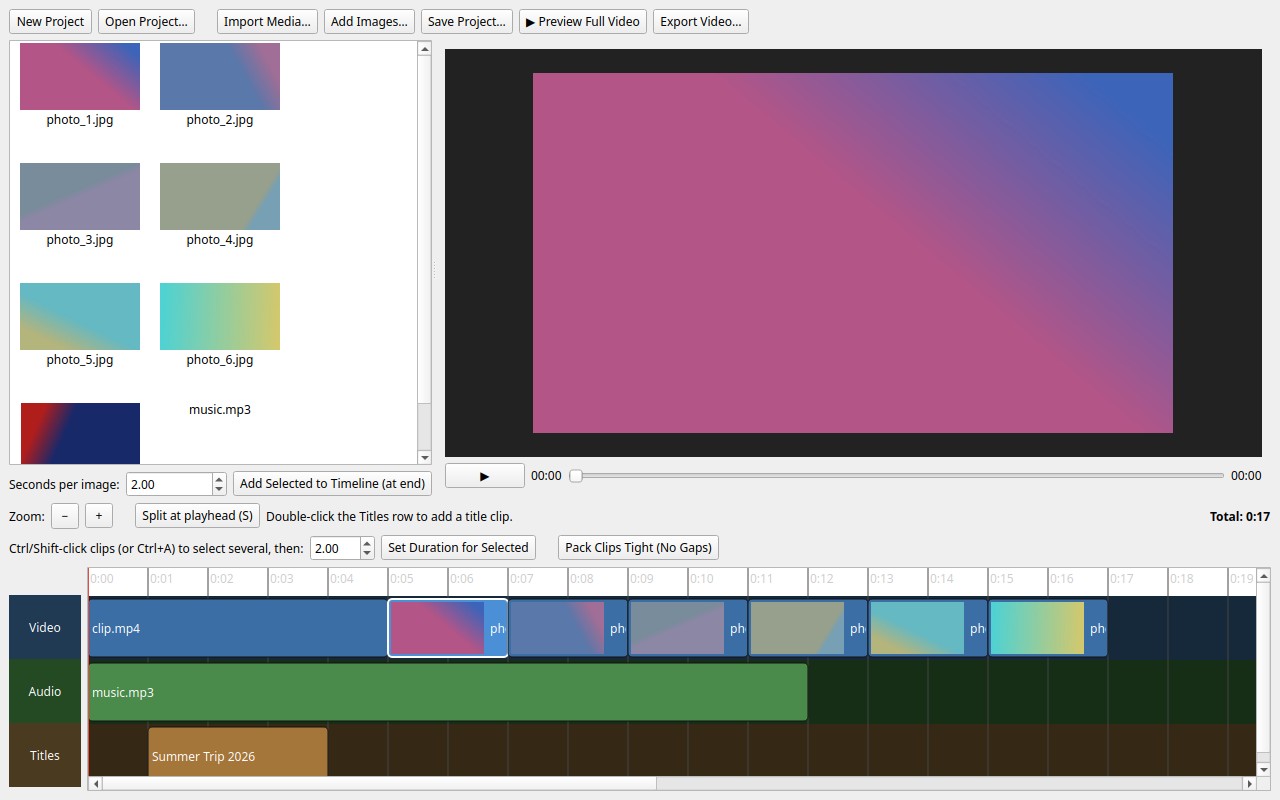
From a folder of files to a finished MP4 — without the complexity of a professional NLE.
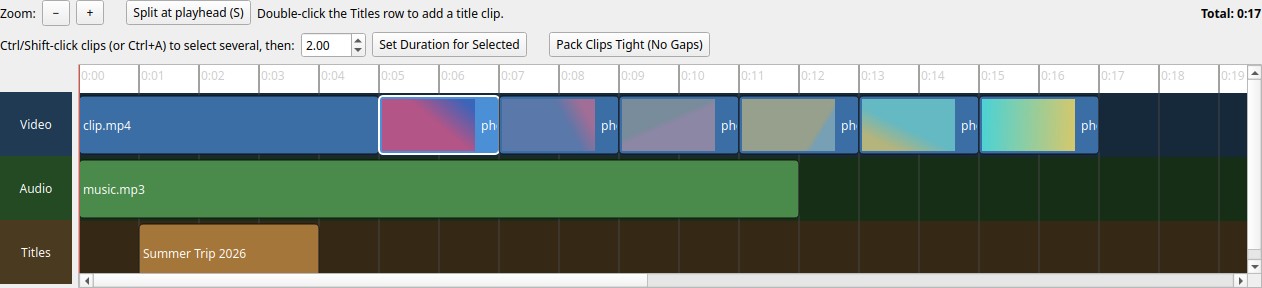
Video, audio, and titles on separate tracks. Drag clips to arrange, drag edges to trim, press S to split at the playhead, Delete to remove. Snapping keeps everything aligned.
Drag one clip over the end of another — the overlap automatically becomes a crossfade of exactly that length. What you see on the timeline is what exports. No transition menus.
Pick individual images or a whole folder at once. Set seconds-per-photo and they land on the timeline back-to-back — 10 photos at 2s each becomes a 20-second video, instantly.
Ctrl+A or Ctrl-click to select several clips, type a new duration, done. "Pack Clips Tight" closes gaps and resolves overlaps so playback is always smooth.
Double-click the Titles row to add text at any point; double-click an existing title to edit it. Rendered with ffmpeg drawtext, boxed and centered, exactly as previewed.
Drop an audio file onto the timeline and slide it to where it should start. Mixed with each video clip's own sound at export; trimmed automatically to the video's length.
One button renders the entire timeline — clips, crossfades, titles, and music blended together — and plays it in the preview pane. Pixel-for-pixel what Export will produce.
Up to 100 steps of undo/redo with Ctrl+Z / Ctrl+Shift+Z. The title bar marks unsaved work with a * and closing prompts you to save — no silent data loss.
The whole timeline compiles to a single ffmpeg filter graph — trims, concats, xfades, drawtext, and audio mixing in one pass. Standard H.264/AAC output that plays everywhere.
Python 3.10+, ffmpeg, Linux / macOS / Windows. No build step — clone and run.
VideoBuilder uses ffmpeg for all media processing. One package-manager command on any OS — see the install guide for your platform.
./run.sh creates the virtual environment and installs PySide6 + Pillow automatically on first use, then starts the app.
The app opens straight into an empty project. Import media or add a folder of photos, arrange them on the timeline, and export.
# Install ffmpeg (Ubuntu/Debian shown; see docs for macOS & Windows) sudo apt install ffmpeg # Clone the repository git clone https://github.com/mnavas/videobuilder.git cd videobuilder # Run — first launch sets up the venv and dependencies automatically ./run.sh
For platform-specific packages, manual setup, and troubleshooting see docs/installation.md.
VideoBuilder is open source and welcomes contributions of any size.
Found something that crashes or behaves unexpectedly? Open an issue on GitHub with steps to reproduce and your OS / Python / ffmpeg versions.
Open an issue →Have an idea for a transition, export preset, or workflow improvement? Open a feature request and describe what you'd like to see.
Request a feature →Fork the repo, create a branch, and send a PR. Check analysis.md first — it explains the architecture and design decisions.
Fork on GitHub →Spotted a gap in the installation guide? Docs are plain Markdown in the docs/ folder — easy to edit and submit.
VideoBuilder is built and maintained as a side project. It's free and open source — but development tools, time, and motivation all have a real cost.
If the app saves you time turning clips and photos into videos, consider sponsoring the project. Every contribution helps keep it maintained and improving.
All contributions go directly to the developer. No company, no VC behind this.
VideoBuilder is released under the MIT License. Use it, fork it, modify it. No restrictions, no telemetry, no vendor lock-in.
View on GitHub →