Load a folder, browse with arrow keys, move keepers to your album, and edit — all in one fast keyboard-driven workflow. With AI edit powered by Claude or a local Ollama model.
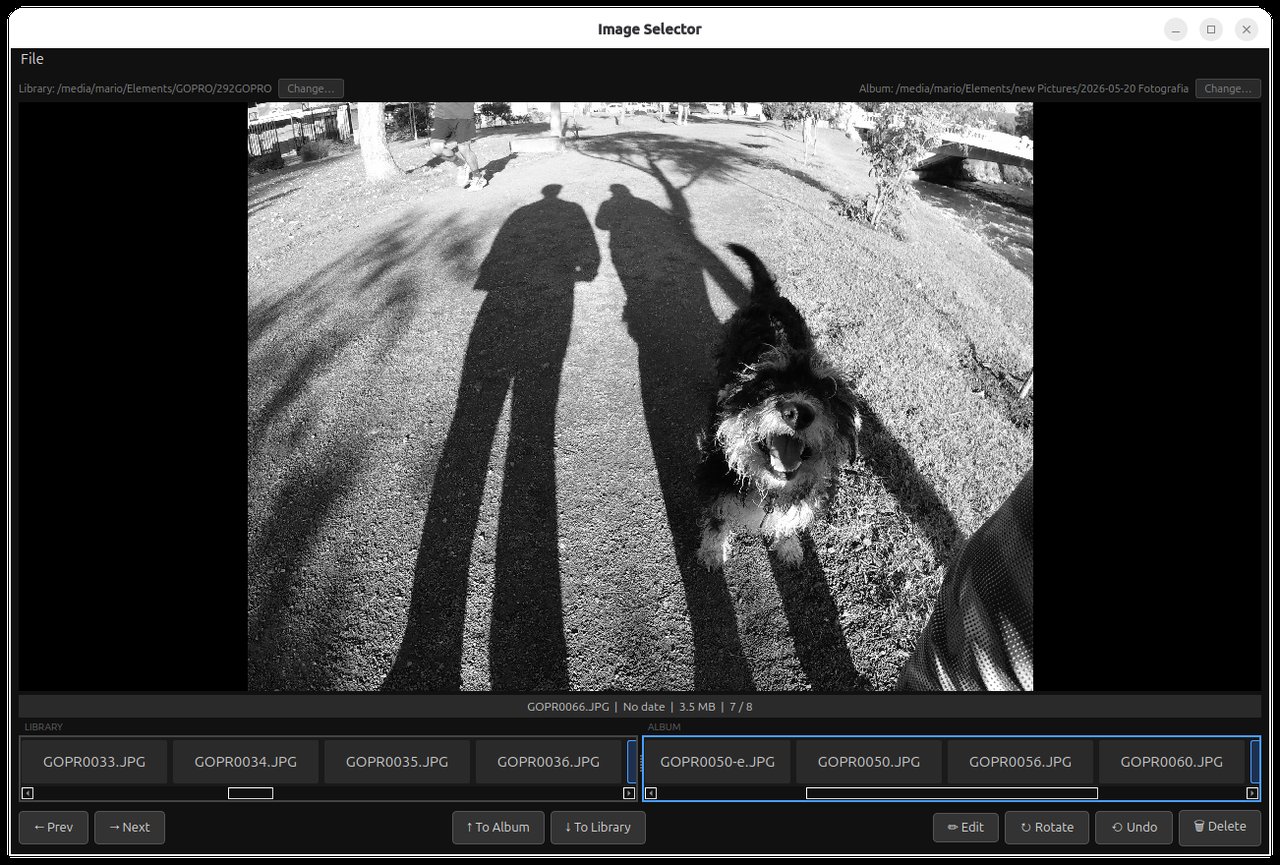
From card dump to finished selects — without touching the mouse.
Browse with ← →, move keepers to Album with ↑, send back with ↓, delete to trash with Del. Tab switches focus between Library and Album panels.
Mouse wheel zooms centred on the cursor. Left-drag to pan. Double-click to fit. Zoom resets automatically when you navigate to the next image.
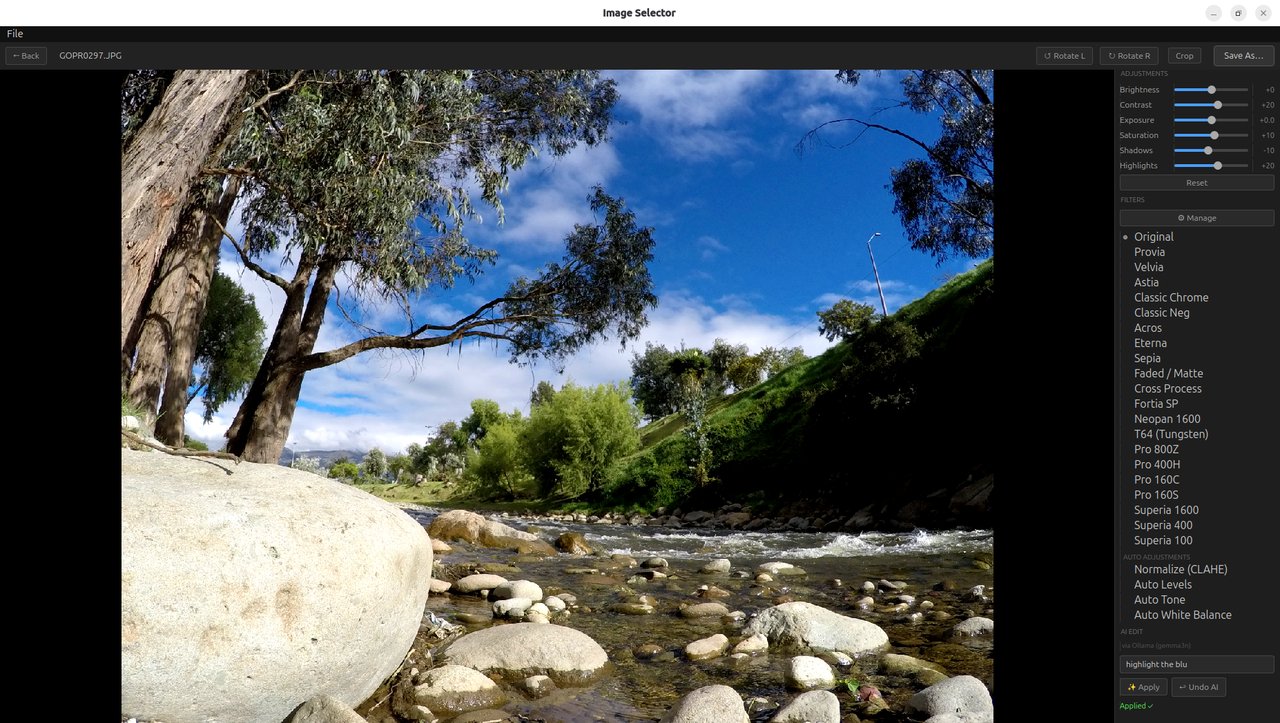
Full-screen edit mode with Brightness, Contrast, Exposure, Saturation, Shadows, and Highlights sliders. The original file is never touched until you click Save As.
Fujifilm-inspired looks: Provia, Velvia, Astia, Classic Chrome, Acros, Neopan 1600, T64, Pro 400H, Superia, and more. A filter manager lets you hide the ones you never use.
Type a prompt — "warm cinematic look", "too dark fix it" — and all sliders update automatically. Works with Claude (Anthropic API) or a local Ollama vision model for free.
Interactive crop overlay with 8 drag handles, aspect-ratio locked to the original, and a rule-of-thirds grid. Confirm with Enter or the Apply Crop button.
Quick rotate 90° CW with R in triage (saves immediately). Rotate left / right in edit mode as part of the non-destructive pipeline — applied only at save time.
Moves preserve original timestamps. Deletes go to the system trash. Saves write to a temp file first then rename atomically — the original is safe until the write succeeds.
Single-level undo for moves (Ctrl+Z). AI edits can be undone with a dedicated ↩ Undo AI button that appears after each suggestion is applied.
Type a natural-language prompt and every slider updates automatically. Works with two backends.
After each suggestion an ↩ Undo AI button appears — one click restores the previous state exactly.
All tone curves computed analytically in NumPy — no external LUT files. A ⚙ Manage button lets you hide the ones you don't use.
● Monochrome
Python 3.11+, Linux / macOS / Windows. No build step — just clone and run.
You'll need Python 3.11+ and Git. A virtual environment keeps dependencies isolated.
One pip command installs PyQt6, OpenCV, Pillow, and everything else listed in requirements.txt.
Launch with bash launch.sh — it activates the venv automatically. On first launch you'll be asked to choose a Library and Album folder.
# Clone the repository git clone https://github.com/mnavas/image-selector.git cd image-selector # Create and activate a virtual environment python3 -m venv .venv source .venv/bin/activate # Windows: .venv\Scripts\activate # Install dependencies pip install -r requirements.txt # Run bash launch.sh # or: python main.py
For platform-specific system packages (Linux libxcb, etc.), desktop launcher setup, AI Edit API key configuration, and Claude Code MCP registration see docs/installation.md.
Image Selector is open source and welcomes contributions of any size.
Found something that crashes or behaves unexpectedly? Open an issue on GitHub with steps to reproduce and your OS / Python version.
Open an issue →Have an idea for a new filter, keyboard shortcut, or workflow improvement? Open a feature request issue and describe what you'd like to see.
Request a feature →Fork the repo, create a branch, and send a PR. Check docs/architecture.md first — it explains the module structure and design decisions.
Fork on GitHub →Spotted a gap in the user guide or installation instructions? Docs are plain Markdown in the docs/ folder — easy to edit and submit.
Image Selector is built and maintained as a side project. It's free and open source — but development tools, time, and motivation all have a real cost.
If the app saves you time sorting and editing your photos, consider sponsoring the project. Every contribution helps keep it maintained and improving.
All contributions go directly to the developer. No company, no VC behind this.
Image Selector is released under the MIT License. Use it, fork it, modify it. No restrictions, no telemetry, no vendor lock-in.
View on GitHub →